
S100 Computers CPM, MSDOS etc. CF Card Images
This page contains complete CF Card downloadable images that should allow you to immediately have CPM3 up on running with S100Computers disk controller boards. It is assumed you are familiar with CPM3, its BIOS and how it works.
If not please see Bringing Up CPM3 on a Hard Disk , Bringing Up CPM3 on a Floppy Disk and Creating Bootable CPM3.SYS Disks .
Here is a list of the boards themselves.
IDE/CF Card Board (all versions).
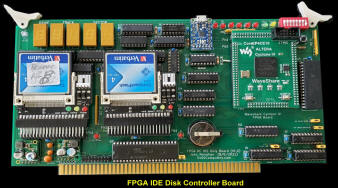
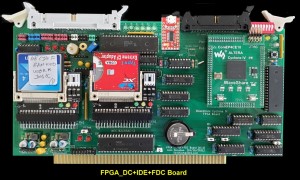
FPGA_DC Disk Controller Boards (The IDE and IDE+FDC versions)
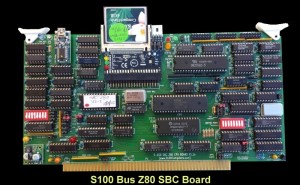
Z80 SBC
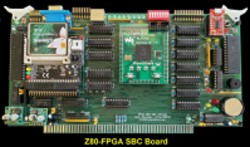
FPGA Z80 SBC
IDE/CF + SD Board
IDE/CF + Dual SD card Board
Dual SD Card Board alone.
Note not all CF cards are created equal!. You may find some of the CF cards obtained fro eBay etc. fail to format/disk copy correctly.
This is because the card internally is "worn". The circuit within the CF card is no longer correctly updating/refreshing the sectors.
While not a problem if one pixel is dropped for a picture it is for a disk OS like we have here. The symptoms usually appear as the CF card is booted from the monitor. It just hangs after reading in the boot sectors.
To understand how these CF card images are generated and can be copied please read in detail the description here .
I generally use 512MB CF cards. The CF card images below are on 512MB CF cards. (Smaller than 256MB CF card sizes don't seem to work).
The HDD Raw Copy program works fine however downloading images to 256MB, 1GB, 2GB and 4GB CF cards.
It just stops when the 512MB is copied (or the 256MB CF card is full) . Remember we are actually only using up the first 8MB of data for these CPM3disk images.
One final note, while all the CF card images below should boot from any version of our CPU boards ROM monitors using the "P" command, it is highly recommended you update the Z80 board with the latest version of the ROM monitor.
Later versions have more boot loader sector read error checking and better CF card initialization. The most recent Z80 Master monitor is here.
Non-Banked CPM CF Card Images
These are the simplest systems to get up and running. So long as you have 60K of RAM and the Propeller Console IO Board you should be able to boot CPM3 immediately.
CPM3 CF Card Image #1 .
This is probably the simplest Non-Banked CPM3 system you can have. It uses only two CF cards on the IDE/CF card board and has no Floppy disk access.
It will boot from all the following S100Computers Disk Controller boards:-
.jpg)
|
|
|
|
| IDE/CF card board (All versions) | FPGA-DC +IDE Board | FPGA_DC_IDE+FCD Board | |
|
|

|
|
| FPGA Z80 SBC | Z80 SBC | IDE-2CF+1SD Board |
Just use the Z80 Master Monitor " P " command. For the FPGA-DC boards make sure you have the IOBYTE/Dip switch in the Monitor Commands mode (Switch 7 open) and allow enough time for the board to initialize.
Click (New Image-1) IDE-CF-AB Non-Banked CPM3 (9-4-2026).imgc to download the CF card image.
It is a sector by sector image on a 512MB CF Card (From 9-4-2026).
The source code to make this CPM3 image can be found here IDE-AB CF (1).ZIP .
Here is how it should signon:

|
You can use the onboard program MYIDE.COM program to make a copy of a CF card. It can be used to completely copy the above disk/CF card (in A:) to a one in B:
Unlike the CPM PIP program, this program copies the data and the CPM3 Boot loader on track 0. See here for more details.

|
Alternatively you can erase any old files in B: and use PIP B:=A:*.*[V] to copy everything across (including CPM3.SYS and CCP.COM ).
However in that case if you want to boot from that card you must write the CPM3 Boot loader to Track 0.
The program CFSYSGEN.COM does this. Here is a session picture.

|
CPM3 CF Card Image #2.
This is a Non-Banked CPM3 Disk with two CF cards on Drive A: and B: and up to four floppy disks.
It requires the Propeller Console IO Board for I/O and a 64K RAM board with RAM from 0H-EFFFH uninterrupted by ROM's etc.
It will only work with the FPGA_DC+IDE Board or the FPGA_DC+IDE+FDC Board .
You can in fact boot and use CPM3 on the Dual IDE/CF Boards its just the floppy disks will not be recognized.
|
|
|
|
|
| IDE/CF card All versions | FPGA-DC +IDE Board | FPGA_DC_IDE+FCD Board |
Just use the Z80 Master Monitor " P " command.
Make sure you have the IOBYTE/Dip switch in the Monitor Commands mode (Switch 7 open) and allow enough time for the board to initialize..
Click (New Image-2) IDE-CF-AB + Floppies Non-Banked CPM3 (9-4-2026).imgc to download the CF card image .
It is a sector by sector image on a 512MB CF Card (From 9-4-2026).
The source code to make this CPM3 image can be found here AB Drives + CDEF Floppies (2).ZIP .
Here is how it should signon:

|
CPM3 CF Card Image #3 .
This is in fact a simplifier Non-Banked CPM3 BIOS than Image#1. Its really only for basic debugging issues since it has only one IDE/CF Card and has no Floppy disk access.
It can find a useful home on the Z80 SBC Board . It will boot from all the following S100Computers Disk Controller boards:-
|
|
|
|
|
| IDE/CF card board (All versions) | FPGA-DC +IDE Board | FPGA_DC_IDE+FCD Board | |
|
|
|
|
|
| FPGA Z80 SBC | Z80 SBC | IDE-2CF+1SD Board |
Just use the Z80 Master Monitor " P " command.
For the FPGA-DC boards make sure you have the IOBYTE/Dip switch in the Monitor Commands mode (Switch 7 open) and allow enough time for the board to initialize..
Click (New Image-3) IDE_CF-A Non-Banked CPM3 (9-4-2026).imgc to download the CF card image.
It is a sector by sector image on a 512MB CF Card (From 9-4-2026).
The source code to make this CPM3 image can be found here I DE-A CF (3).ZIP .
Here is how it should signon:-
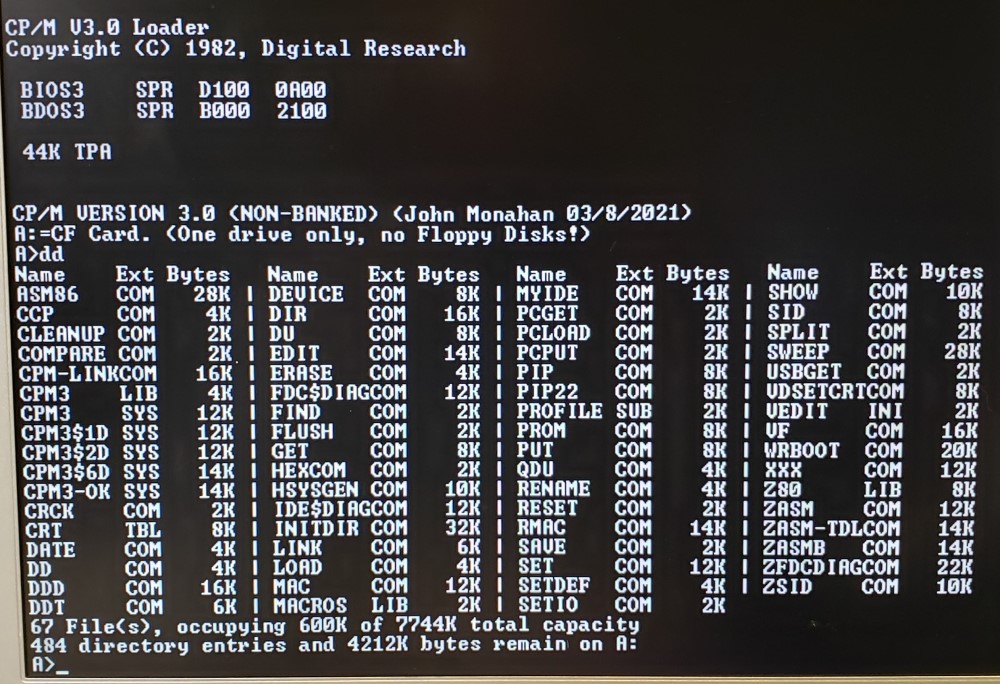 |
CPM3 CF Card Image #11
This is a Non-Banked CPM3 Disk with two CF cards on Drive A: and B: and more "classical" CPM software for the IDE-CF card .
|
|
|
|
|
| IDE/CF card board (All versions) | FPGA-DC +IDE Board | FPGA_DC_IDE+FCD Board | |
|
|
|
||
| FPGA Z80 SBC | Z80 SBC |
The card contains a larger/different set of CPM programs than some of the other images.
For the FPGA-DC boards make sure you have the IOBYTE/Dip switch in the Monitor Commands mode (Switch 7 open) and allow enough time for the board to initialize..
Click (New-Image-11) IDE-CF-AB Non-Banked CPM3 Many Files (8-5-2026).imgc to download the CF card image.
It is a sector image on a 4GB Verbatim CF Card (From 9/5/2026).
The source code to make this CPM3 image is the same as image #1 and can be found here IDE-AB CF (1).ZIP .
Here is how a list of the file names:-

|
CPM3 CF Card Image #7
" ZSOS " (Z80 SBC OS ) is a CP/M 3 distribution written by Dave Fry (and Dave Mehaffy - now deceased), that rearranges the CPM3 BIOS sectors/track so the are no 'holes"
in the track/sector numbering. The image files contain an invaluable extensive set of user areas:-
Please note this disk format is not compatible with the other CF card images here. The relevant CPM3 ZSOS BIOS files can be found here .
The main reason I am including this CF card image here is that the "disk" contains an enormous number of CPM files in the different CPM user sections.
User Area 0: CP/M 3 Base Files
User Area 1: XMODEM + Kermit + MBASIC 5.29
User Area 2: SuperSoft Utilities
User Area 3: DDTZ Debugger (will need to be built from source)
User Area 4: BDS Tiny C
User Area 5: Games
User Area 6: Turbo Pascal 3.0
User Area 7: Development Utilities
User Area 8: <Available for additional user files>
User Area 9: <Available for additional user files>
All of these files in the above user groups are contained in the zip file here .
ZSOS will boot from all the S100Computers IDE based Disk Controller boards:-
|
|
|
|
|
| IDE/CF card board (All versions) | FPGA-DC +IDE Board | FPGA_DC_IDE+FCD Board | |
|
|
|
||
| FPGA Z80 SBC | Z80 SBC |
Just use the Z80 Master Monitor " P " command.
For the FPGA-DC boards make sure you have the IOBYTE/Dip switch in the Monitor Commands mode (Switch 7 open) and allow enough time for the board to initialize.
Click (Image-7) IDE-CF-A for ZSOS System Non-Banked CPM3.imgc to download the CF card image.
To make this CPM3 image you will have to do it yourself starting with the files ZSOS BIOS Files.ZIP .
It is a sector image of a single CF Card Drive Bootable CPM3 on a 4GB Verbatim CF Card (From 1/25/2022). Remember CF cards 256MB upwards are fine.
Here is how it should signon:
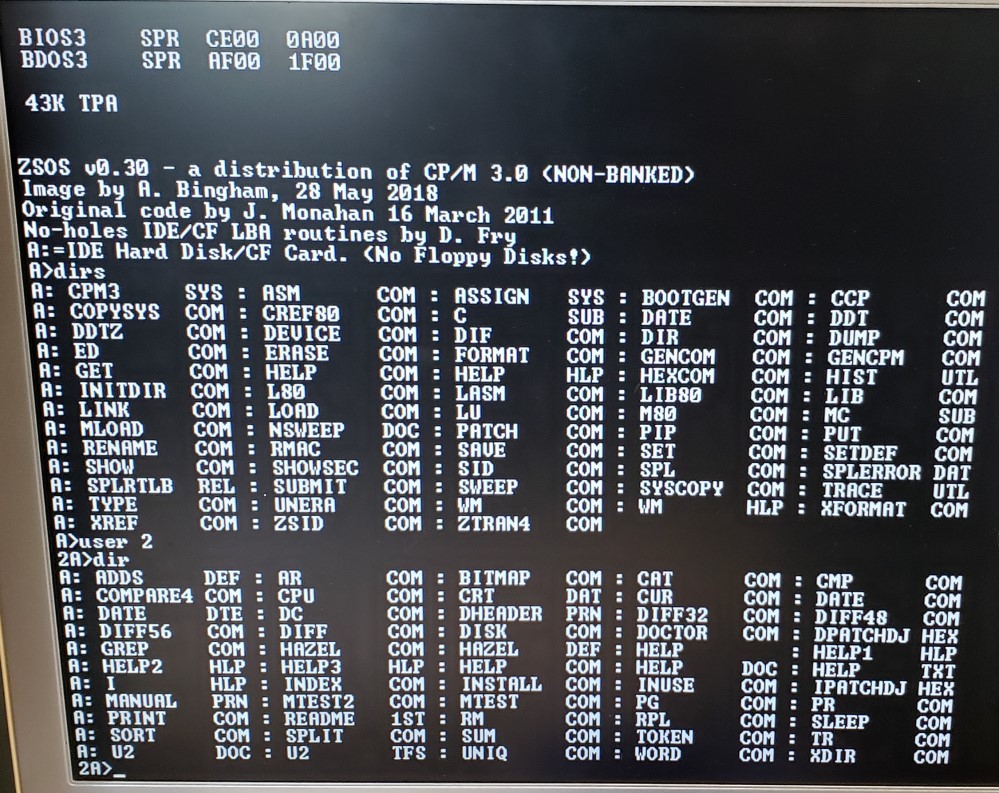
|
Note the use of CPM3 User Groups.
Remember you cannot read files from the (normal S100Computers) 61 sectors/track CF cards since the disk format is different.
You would have to setup another ZSOS drive with a BIOS containing 61 sectors/track to do so.
Banked CPM3 CF Card Images
CPM3 CF Card Image # 9
This is probably our simplest Banked CPM3 system. It uses only two CF cards on the IDE/CF card board and has no Floppy disk access.
It will boot from all the following S100Computers Disk Controller boards:-
|
|
|
|
|
|
| IDE/CF card board (All versions) | FPGA-DC +IDE Board | FPGA_DC_IDE+FCD Board | IDE-2CF+1SD Board |
Just use the Z80 Master Monitor "
P
" command.
Click on (New-Image-9) IDE-CF-AB Banked CPM3 (9-4-2026).imgc to download the CF card image.
It is a sector image on a 512MB CF Card (From 9-5-2026)
The source code to make this CPM3 image can be found here IDE-AB CF Banked (9).ZIP .
Here is how it should signon:
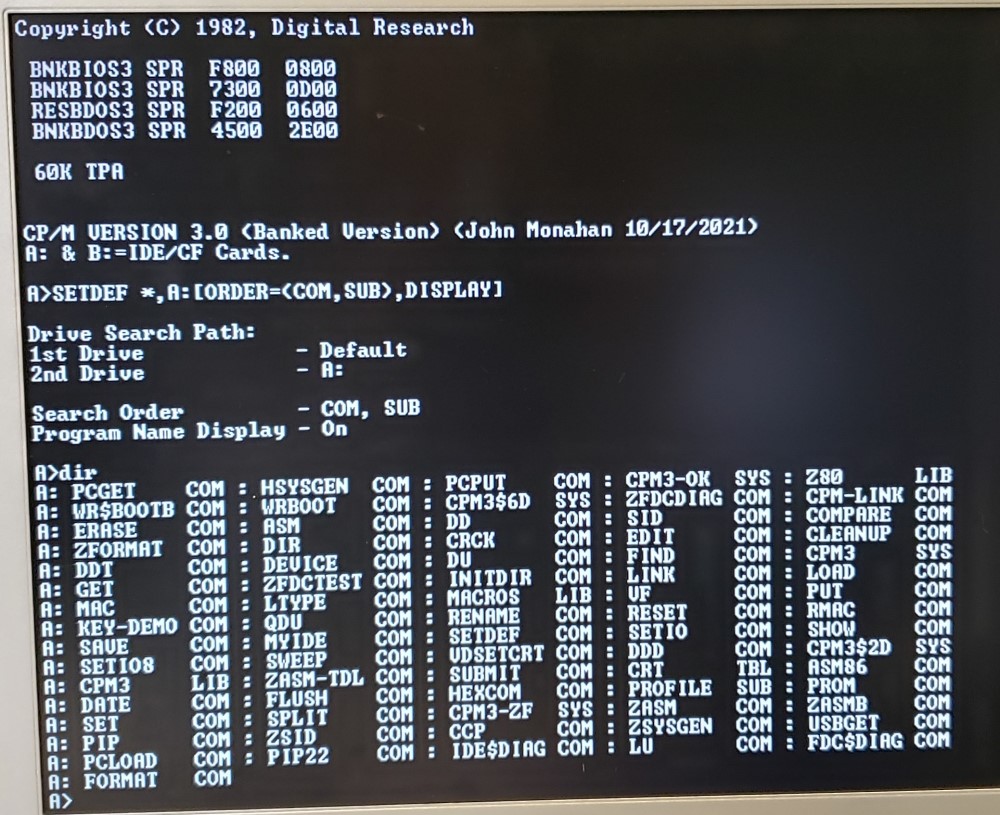
|
You will notice in the BIOS code the MSDOS Support Board clock and the Serial IO Board Speech synthesizer is used.
If these boards are not present the BIOS will just ignore output to them.
Note the 60K TPA.
CPM3 CF Card Image #4.
This is another Banked CPM3 Disk with two CF cards on Drive A: and B: but this time with two 8" floppy disks using the ZFDC Floppy disk controller board .
The floppy disk hardware is ignored on the IDE/CF and FPGA_DC+IDE boards. The FPGA_DC+FDC Board should work with the floppies.
|
|
|
|
|
| IDE/CF card board (All versions) | FPGA-DC +IDE Board | FPGA_DC_IDE+FCD Board |
It will not work (as it stands), with the FPGA Z80 SBC or the Z80 SBC boards.
Typing the " P " command in the Z80 Master monitor (at F000H-FFFFH in ROM) is all you need to boot CPM3.
For t he FPGA-DC boards make sure you have the IOBYTE/Dip switch in the Monitor Commands mode (Switch 7 open) and allow enough time for the board to initialize.
Click (Image-4) IDE-CF AB + CD Floppies Banked CPM3.imgc to download the CF card image.
The source code to make this CPM3 image can be found here IDE-AB CD Floppy Disks Banked (4).ZIP .
It is a sector image is on a 256MB CF Card (From 9/5/2026). Here is how it should signon:-

|
Note the 60K TPA.
This is a Banked CPM3 Disk with two CF cards on Drive A: and F: the floppy disks are B: C: and D: using the ZFDC Floppy Disk Controller board
Drive E: is an Electologics Memory Disk and G: is a ST506 hard disk.
|
|
|
|
|
| IDE/CF card board (All versions) | FPGA-DC +IDE Board | FPGA_DC_IDE+FCD Board |
It will work with the Dual IDE/CF card board , the FPGA_DC+IDE Board and the FPGA_DC+IDE+FDC Board but you will need the ZFDC board to access floppy disks..
It will not work (as it stands), with the FPGA Z80 SBC or the Z80 SBC boards.
Typing the " P " command in the Z80 Master monitor (at F000H-FFFFH in ROM) is all you need to boot CPM3.
For the FPGA-DC boards make sure you have the IOBYTE/Dip switch in the Monitor Commands mode (Switch 7 open) and allow enough time for the board to initialize..
Click (New Image-6) IDE-CF-AF, BCD Floppies E Mem Disk, G HDisk Banked CPM3 (9-5-2026) to download the CF card image.
It is a sector image on a 256MB CF Card (From 9/5/2026)
The source code to make this CPM3 image can be found here Dual IDE Board Full System (6).ZIP .
Here is how it should signon:

|
Note how the second CF card in this setup is drive F:
While a reference is made to the MSDOS Support board and Serial Board it is not required to run the system.
You will get the signon ZFDC Initialization Error if that board is not present.
A MSDOS CF Card Image
MSDOS CF cards are in fact simpler to work with. There is no banking. The 8086, 80386 etc. ROM BIOSEs assume an exact IBM AT hardware setup.
Any MSDOS V4.01 Disk can be read or written to with this ROM BIOS. However MSDOS is counting on the presence of the MSDOS Support Board (any version).
This supplies all the hardware to fool MSDOS into thinking it is talking to a standard IBM PC-AT.
Console Output is selectable with the 8086 IOBYTE switch to be either the Propeller Console IO board or the VGA Video board .
MSDOS CF Card Image #8
This is a MSDOS Disk image with two CF cards on Drive A: and B:.
|
|
|
|
|
| IDE/CF card board (All versions) | FPGA-DC +IDE Board | FPGA_DC_IDE+FCD Board |
It will work with the Dual IDE/CF card board , the FPGA_DC+IDE Board and the FPGA_DC+IDE+FDC Board but you will need the ZFDC board to access floppy disks..
Typing the " P " command in the 8086 Monitor or 80386 Monitor is all you need to boot MSDOS.
For the FPGA-DC boards make sure you have the IOBYTE/Dip switch in the Monitor Commands mode (Switch 7 open) and allow enough time for the board to initialize..
It's very important to remember the ROM MSDOS BIOS assumes the boot CF Card is in drive B: for all the above disk controllers. MSDOS will not boot from Drive A:
Click (Image-8) IDE-CF Basic MSDOS System.imgc to download the CF card image.
It is a sector image on a 4GB Verbatim CF Card (From 1/25/2022)
Here is how it should signon:
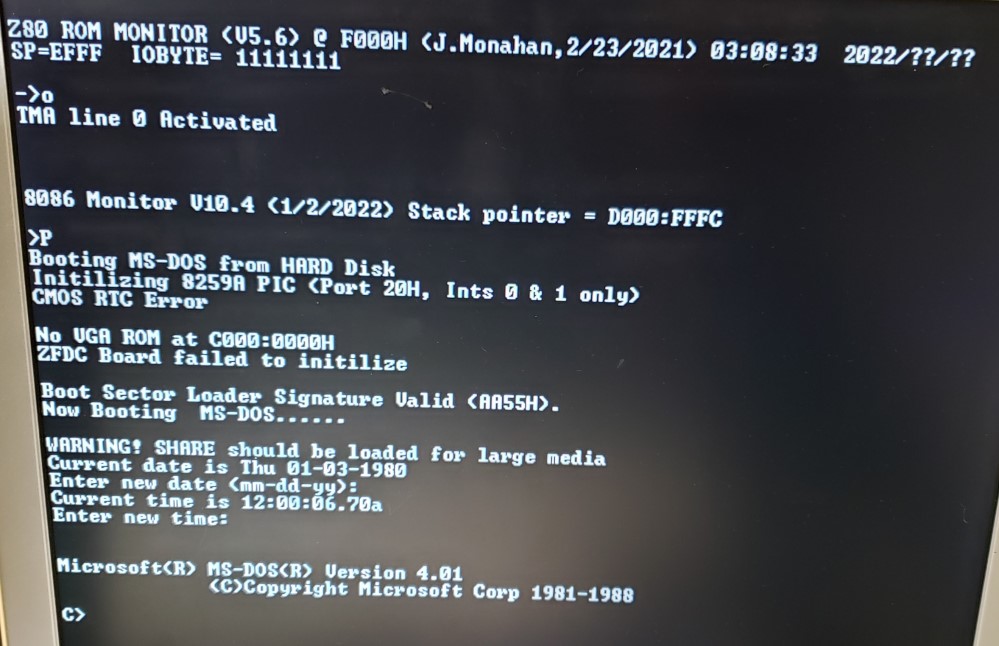
|
Clearly the MSDOS Support Board clock was not initialized!
Note, there is a problem booting MSDOS with some CF cards. This was a problem with the older CPM3 BIOS 'es as well until HIDE3.ASM was updated.
I have not yet modified the 8086/80386 ROMs to correct this issue.
Please use Kingston or Verbatim CF cards for now.
These MSDOS CF card images are first generated by copying MSDOS from and IDE drive in a PC to a CF card in the SAME PC using an IDE->CF card adaptor.
Make sure the boot and operating system is on the CF card.
A CPM68K CF Card Image
Bringing up CPM68K is the work of Damian Wildie in Australia. It's essential you study the write-up CPM68K for the First Time before going further.
The operating system only assumes then presence of the Propeller Console IO board . The V4 Serial Board is nice however for time stamping of files.
There is currently no floppy support.
CPM68K CF Card Image # 10
This is a CPM68K Disk image with two CF cards on Drive A: and B:.
It will work with the Dual IDE/CF card board all versions. Currently it's not booting from the FPGA_DC+IDE Board and the FPGA_DC+IDE+FDC Board , I don't know why.
Typing the " B " command in the Z80 Master monitor to bring up the 68000 or 68030 CPU.
The CF card image assumes that the CPM68K Boot ROM is present on the CPU board and not the "classical" 68K monitor. (see here) .
|
|
|
| IDE/CF card board (All versions) |
CPM68K Boots from the A: drive.
Use (Image-10) IDE-CF CPM68K.imgc to download the CF card image.
It is a sector image of a 2 CF Card on a 4GB Verbatim CF Card (From 1/25/2022)
Here is how it should signon:
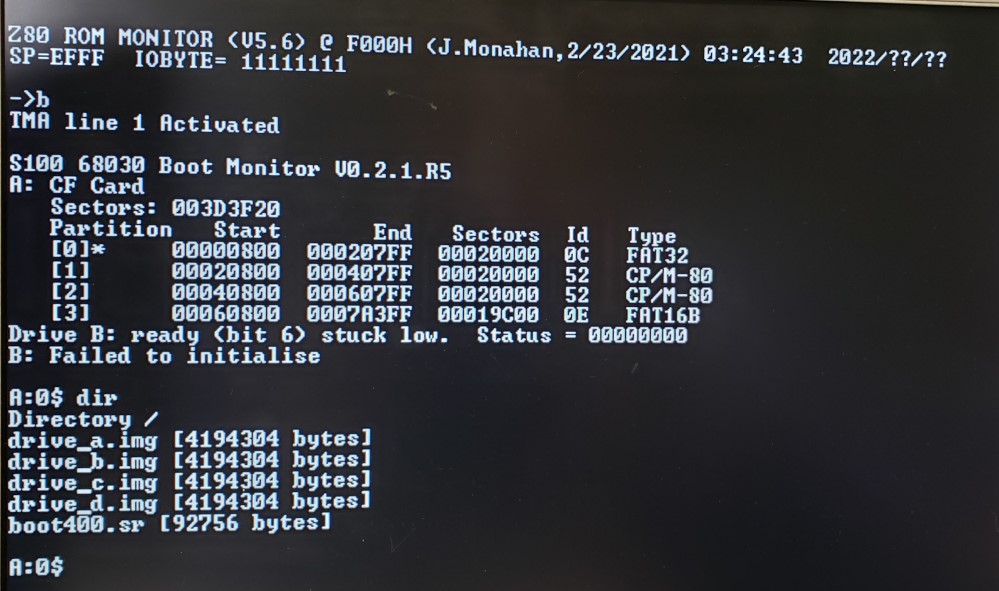
|
Note, there is a problem booting CPM86K with some CF cards. This was a problem with the older CPM3 BIOS 'es as well until HIDE3.ASM was updated.
I have not yet modified the 68K ROM to correct this issue.
Please use Kingston or Verbatim CF cards for now.
CPM3 Images for SD Card boards.
Note for these ESP32 driven SD card "Disk" controller boards , a number of the above IDE/CF card board programs will not work with them.
Programs like MYIDE.COM for example will not work. These boards have their own ESP323 based CPM3 BIOS , " SDLOADER.COM " etc.
CPM3 is launched with these boards from a V6.67 (or above), Z80 master monitor using the "I" command.
Non-Banked CPM3 Two SD Cards Image #18 .
This is a Non-Banked CPM3 Disk with two SD cards on Drive A: & B: of the Dual SD card Board
.jpg) |
Click (Image-18) AB-SD Card Non- Banked CPM3 (9-6-2026).imgc to download the SD card image.
Note this image is on a 1GB SD Card. You can use a CF file to store the image if you like with HDD Raw Copy but of course the final image must be on an SD card.
The Source code and instructions for the BIOS for this image can be found on this AB-SD DISK (18).ZIP
Banked CPM3 Two SD Cards Image #19 .
This is a Banked CPM3 Disk with two SD cards on Drive A: & B: on the Dual SD card Board .
|
|
Note this image is on a 1GB SD Card
The Source code and instructions for the BIOS for this image can be found on this AB SD Banked (19).ZIP .
Here is a picture of the file names etc.

|
Non-Banked CPM3 CF Card Image #12 .
This is a Non-Banked CPM3 Disk with two CF cards on Drive A: and B: and an SD card in Drive C: for the IDE_2CF+1SD Board.
.jpg)
|
It will NOT work the standard IDE/CF card based boards.
On this image the boot disk is always the A: CF card.
Click (New Image-12) IDE-CF+SD Non Banked (9-6-2026).imgc to download the CF card image.
Note this image is on a 521MB CF Card
The source code and instructions for the BIOS for this image can be found on this IDE-AB CF+ESP32 C SD (12).ZIP
Here is a picture of the file names on drive C:.

|
Remember IDE based programs will not work with this ESP32 driven board for CF cards.
To put/repair a CPM Boot loader on this CF card you must do so by placing the card in the B drive of the standard IDE/CF card board and run CFSYSGEN from there.
Of course the above New Image-12 already has the CPM loader installed on teh CF card.
CPM3 CF Card Image #13 .
This is a Banked CPM3 Disk with two CF cards on Drive A: and B: and an SD card in Drive C: for the IDE_2CF+1SD Board (only).
|
|
It will NOT work the standad IDE/CF card based boards.
On this image the boot disk is always the A: CF card.
Click (New Image-13) IDE-CF+SD Non Banked (9-6-2026).imgc to download the CF card image.
Note this image is on a 256MB CF Card
The source code and instructions for the BIOS for this image can be found on this IDE-AB CF+ESP32 C SD (13).ZIP
Here is a picture of the file names on drive C:.

|
CPM3 CF Card Image #14
This is a Non-Banked CPM3 Disk with two CF cards on Drive A: and B: and two SD cards in Drive C: & D: of the Dual SD card Board (only).
This version of CPM3 will work fine without the presence of the Dual SD cards and all the usual IDE/CF card programs should work fine with the CF cards (but not the SD cards).
.jpg) |
+ |
|
The boot disk is always the A: CF card.
Click (New Image-14) IDE-CF+ESP32 CD NB (9-9-2026).imac to download the CF card image.
Note this image is on a 512MB CF Card
The source code and instructions for the BIOS for this image can be found on this IDE-AB CF+ESP32 CD SD (14).ZIP
Here is a picture of the file names on drive C:.

|
CPM3 CF Card Image #15
This is a Banked CPM3 Disk with two CF cards on Drive A: and B: and two SD cards in Drive C: & D: of the Dual SD card Board (only).
This version of CPM3 will work fine without the presence of the Dual SD cards and all the usual IDE/CF card programs should work fine with the CF cards (but not the SD cards).
|
|
+ |
|
The boot disk is always the A: CF card.
Click (New Image-15) IDE-CF+ESP32 CD Card Banked (9-6-2026).imgc to download the CF card image.
Note this image is on a 256MB CF Card
The source code and instructions for the BIOS for this image can be found on this IDE-AB CF+ESP32 CD SD Banked (15).ZIP
Here is a picture of the file names on drive C:.

|
CPM3 CF Card Image #17 .
This is my main "Work Disk" configuration. This is a Banked 4 drive CPM3 system with up to two CF cards and two SD cards.
This is a Banked CPM image, it will work with all the IDE/CF circuit boards which uses the USB port on the V3 Z80 CPU board for Console IO
IF the K8 Jumper is set to 2-3 .
If the K8 jumper is set to 1-2 all Console IO goes to the Propeller Console IO Board . This is also the case for older Z80 CPU boards.
The usual hardware configuration is a combination of the IDE/CF board and the Dual SD card board .
|
|
+ |
|
It will also work fine with the Dual IDE+SD card board.
|
|
It will also work fine with any board that used one or both IDE/CF Card circuits. It signs on with a message saying that the SD cards are not implemented.
It will work with the FPGA DC IDE Board but not with the FPGA Z80 SBC or other FPGA containing boards. This is probably something minor but I have not had time to look into it.
The boot disk is always the A: CF card.
Click (New Image-17) IDE-AB-CF+Dual SD Card Banked CPM3 For V3 Z80 CPU Board (9-9-2026).imgc to download the CF card image.
Note this image is on a 256MB CF Card
The source code and instructions for the BIOS for this image can be found on this IDE-AB ESP32-CD-SD Banked V3 Z80 Board (17).zip
Here is a picture of the file names on drive C:.
 |
Non-Banked CPM3 Two CF Cards and a SCSI Drive #20 .
This is a Non-Banked CPM3 Disk with two CF cards (Drive A: & B:) on the IDE/CF Board and a SCSI Drive C: on the SCSI Board .
It is basically Image #1 with the addition of the SCSI drive.
|
|
+ |
.jpg) |
The boot disk is always the A: CF card.
Click (New Image-20) IDE-CF-AB SCSI-C (9-9-2026).imgc to download the CF card image.
Note this image is on a 256MB CF Card
The source code and instructions for the BIOS for this image can be found on this IDE-AB CF+SCSI (20).zip
Here is a picture of the file names on drive C:.
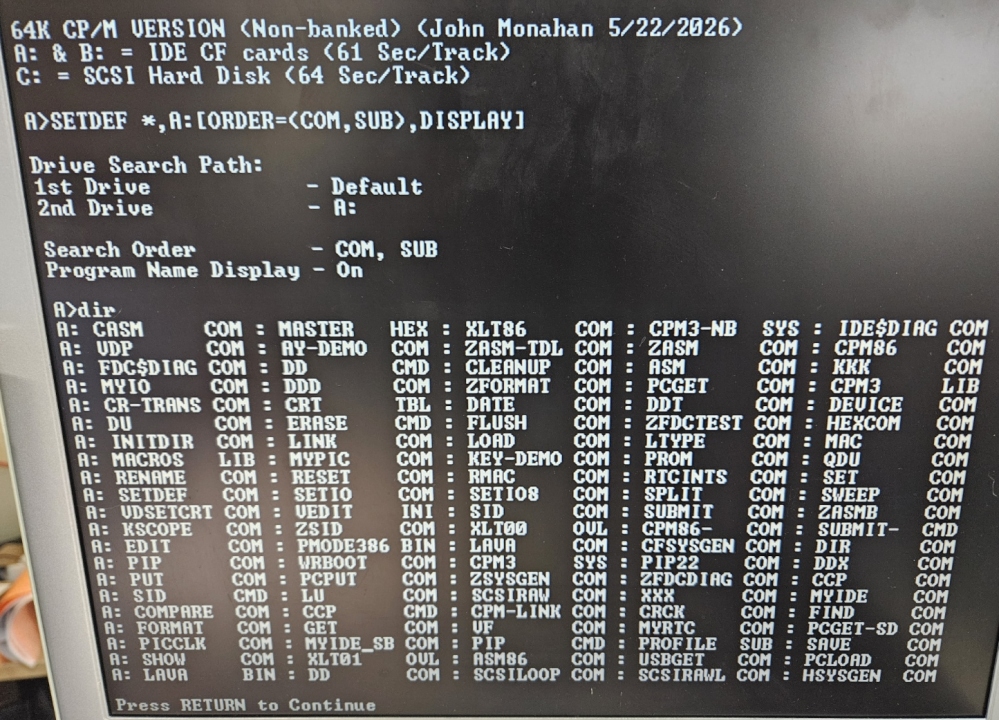
|
Here is a local download for the HHD Raw Copy Tool:-
HHD RAW Copy Tool (.exe install file from https://hddguru.com/software/HDD-Raw-Copy-Tool/ )
This page was last modified on 09/20/2026